
Help & getting started
Updated Oct 21, 2026 · Build 40
Everything you need to start journaling in PJ.
PJ is your pocket dragon — a private, voice-first journal that stays yours. Write or just talk on your iPhone, iPad, or Mac — or capture a thought by voice on your Apple Watch — and it syncs quietly across your own devices. Your feedback still shapes it — see Your voice below.
New to PJ? It's a private, voice-first journal for iPhone, iPad, Mac, and Apple Watch.
Get PJ on the App Store →$2.99, one time, no subscription. Beta testers can keep using TestFlight free. Already using PJ? Read on — this guide covers everything.
01 · Getting started
Three ways to capture a thought
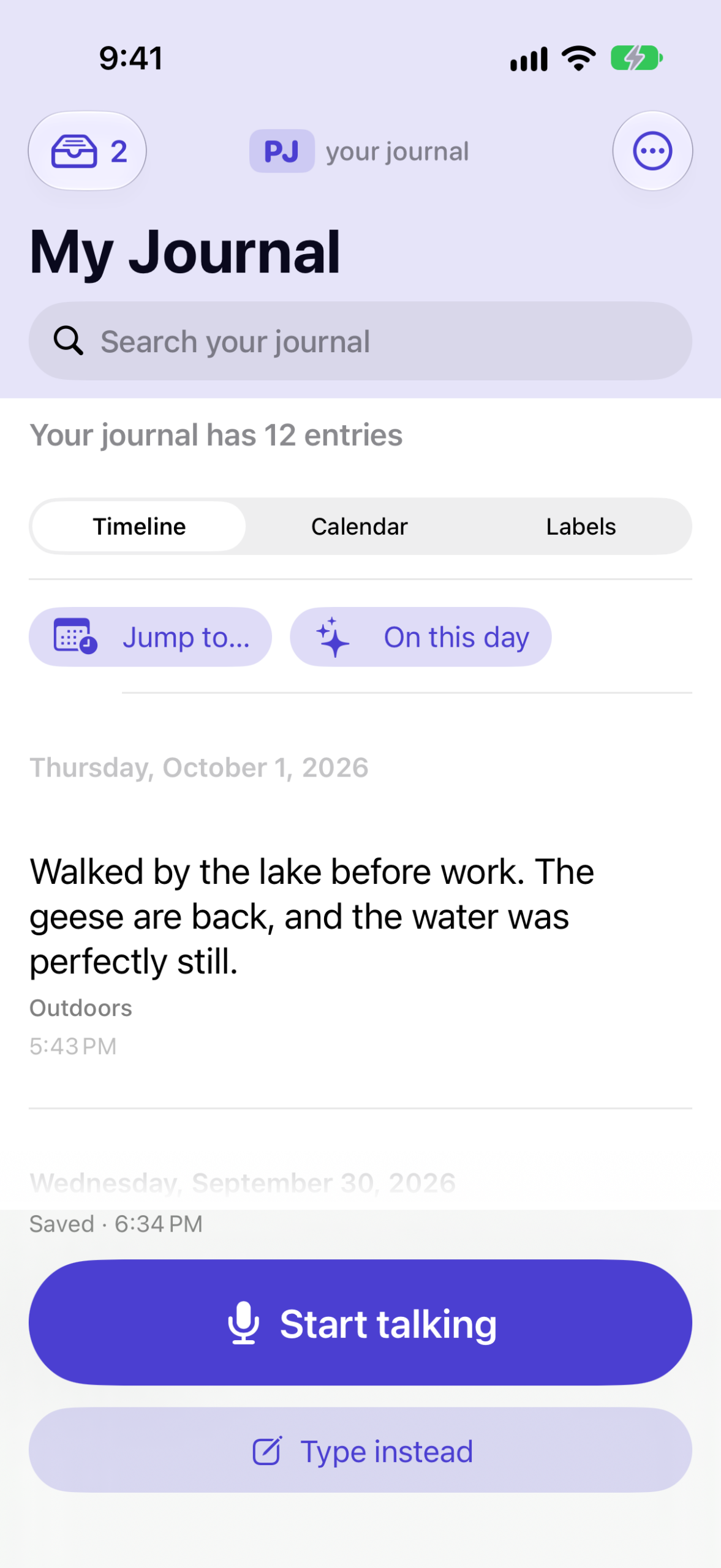
However you open PJ on your iPhone, iPad, or Mac, there are three things you can do — talk, write, and read back:
- Talk — just speak, and PJ writes it down for you, on your device, saving the moment you stop. On your iPhone it's Start talking at the bottom of your journal; on the Mac it's Talk at the top.
- Write — type an entry instead, like a note. On the iPhone, Type instead; on the Mac, Write.
- Read — your journal, newest first, with search and labels. On the iPhone this is simply the screen you open to; on the Mac it's Read at the top.
Your Apple Watch does one of these — talk. Raise your wrist, record a thought, and PJ saves it and syncs it to your other devices. Reading and writing your journal happen on iPhone, iPad, and Mac. See Apple Watch below.
A quick setup check (new in build 34). When PJ needs it, a short, friendly checklist helps make sure the things that let it work and sync are in place — that you’re signed in to iCloud, that you’re online for the first sync, and, if you’re running the iPhone version on a Mac, a pointer to the Mac version made for your computer. It never blocks you: there’s always a Start writing that takes you straight in. You can run it any time from Settings → Check my setup. If your journal is ever slow to arrive on a new device, that’s the first place to look — it’ll point you to iCloud Keychain if that’s what’s holding things up.
02 · Start from a moment or a photo
Let a moment — or a photo — start the entry
On iPhone and iPad there’s another way to begin: let a recent moment start the entry for you. On the writing screen tap Start from a moment, and your phone offers a few recent moments — a photo, a walk, a place you went, something you listened to. Pick one and PJ opens a new entry already started with a warm line or two, ready for you to keep writing in your own words. Nothing is saved until you tap Save.
Start from a photo (new in build 30, iPhone and iPad). Right there on the writing screen is a second way in — Start from a photo — which opens your photo library so you can pick any picture to begin an entry, handy for when the moment you want isn’t in Apple’s suggestions. PJ reads the photo’s date and, if it has one, its location, keeps a small private copy the same way, and opens a new entry for you to write. It asks for no photo-library permission — you hand it just the one picture you pick.
On the save screen you decide what comes in, with three small switches PJ remembers:
- Date it — dates the entry to when the moment happened (on by default).
- Include who & where — off by default; brings in the fuller description (which can include the place and the names of people in the photo) and adds a small place-and-date line to the entry.
- Keep a small picture of the moment — off by default; keeps a small, private copy of the photo right in the entry, so you remember what it was about. It’s a downsized copy with the location and camera data stripped out, synced across your own devices, and shown on iPhone, iPad, and Mac.
New in build 30: if a moment (or the photo you picked) has more than one picture, PJ shows a small row of them so you choose which to keep — with a clear preview of exactly what will be saved. And if a picture carries a location but no place name, the entry simply notes “Location kept”, so nothing is stored that you can’t see.
Entries you start this way are gathered under From a moment — at the top of your Labels on iPhone, and in the sidebar on Mac — handy, since a moment often dates an entry back into the past where it’s otherwise easy to lose. (More in Finding entries.)
Start from a moment is iPhone and iPad only — it uses Apple’s Journaling Suggestions, which the Mac doesn’t have. The picker shows what your phone decides are recent, meaningful moments; it is not a photo browser and you can’t scroll to a specific date, so if you don’t see much, that’s normal — it fills in as you go about your days. Start from a photo (picking a photo yourself) works on iPhone, iPad, and the Mac as of build 35. Private, as always: the picture, the place, and the description only enter your journal if you choose them, nothing about a moment leaves your phone, and it’s all encrypted.
03 · Quick capture
Catch a thought in one move
PJ comes with a built-in Capture a thought action that opens PJ already recording — nothing between you and the thought. It's part of the app, so there's nothing to build; just put it wherever you'll reach for it:
- Say it — “Hey Siri, capture a thought in PJ.” Works with the phone in your pocket or on a walk.
- Lock Screen widget — one tap from the screen you're already looking at. Long-press the Lock Screen → Customize → tap under the clock → PJ → Capture a thought.
- Home Screen widget — long-press an empty spot → Add Widget → PJ → Capture a thought.
- Action Button (iPhone 15 Pro and later) — Settings → Action Button → Shortcut → Capture a thought.
- Back Tap — Settings → Accessibility → Touch → Back Tap → Double Tap → Capture a thought. Two taps on the back of the phone, even through a case.
- Control Center — swipe down from the top-right → + → Add a control → Capture a thought.
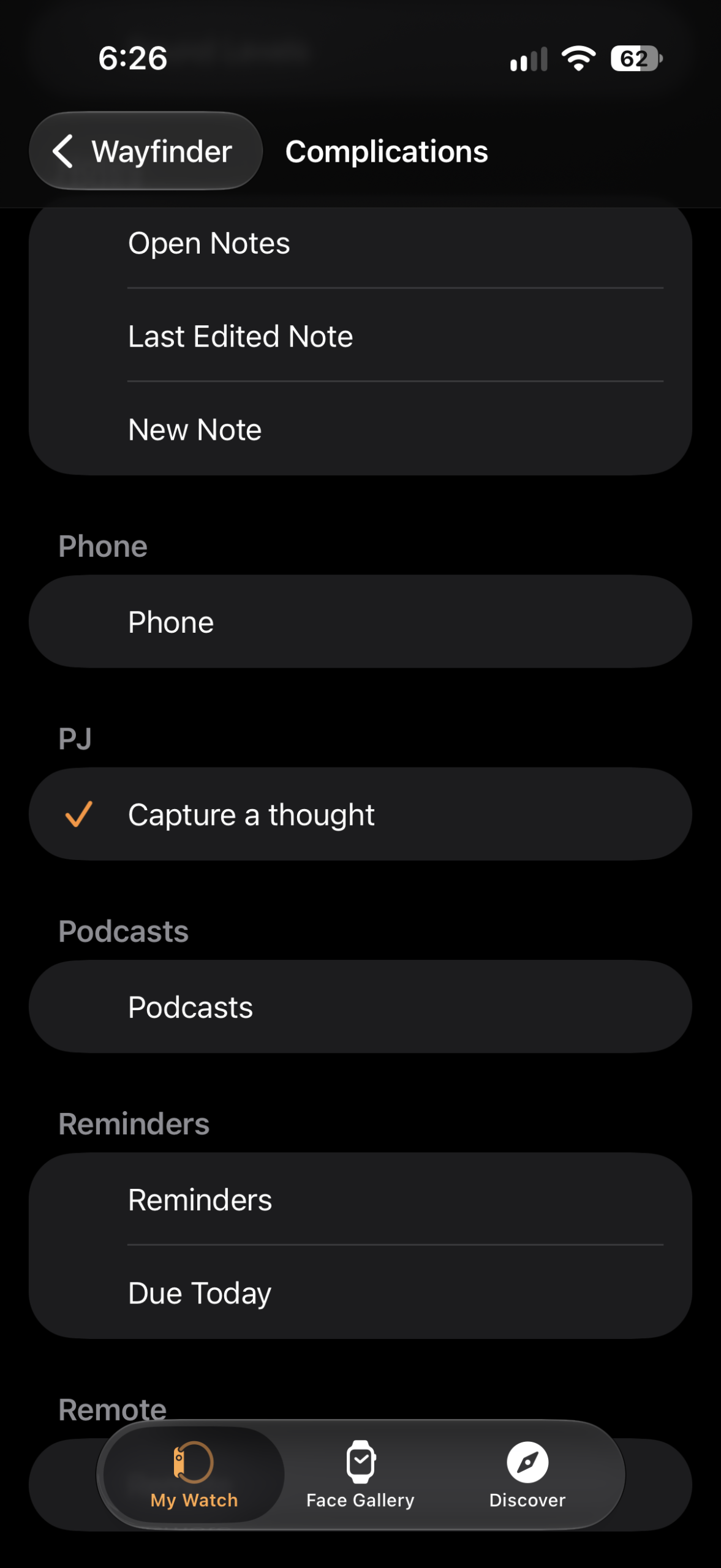
- Apple Watch complication — add Capture a thought to any watch face and your wrist becomes the fastest way in. In the iPhone Watch app → your face → a complication slot → under PJ, pick Capture a thought.
04 · Apple Watch
Talk to your wrist
Raise your wrist, open PJ, and say what's on your mind — great on a walk or in the car. PJ records it right there on the watch, saves it, and syncs it to your iPhone, iPad, and Mac.
To add the watch app:
- Install PJ on your iPhone and open it once.
- On the iPhone, open the built-in Watch app.
- Scroll to Available Apps, find PJ, tap Install.
- Give it a minute — it lands on your watch, and you're set.
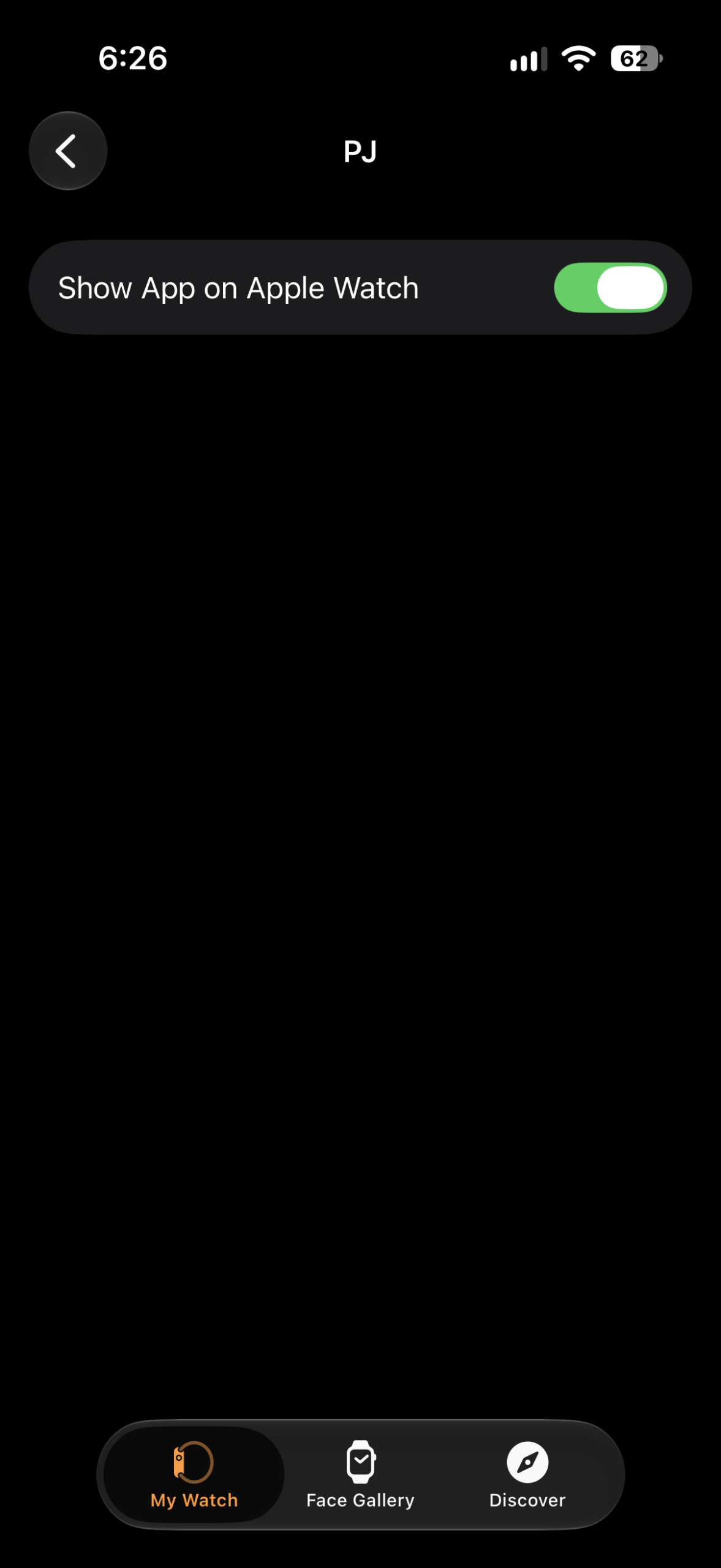
Not showing up? Keep the watch nearby and charging, confirm PJ is on the phone and opened once, then check Available Apps again. Still stuck — email me your watch model at support@pjjournal.com.
05 · Finding entries
Getting around your journal
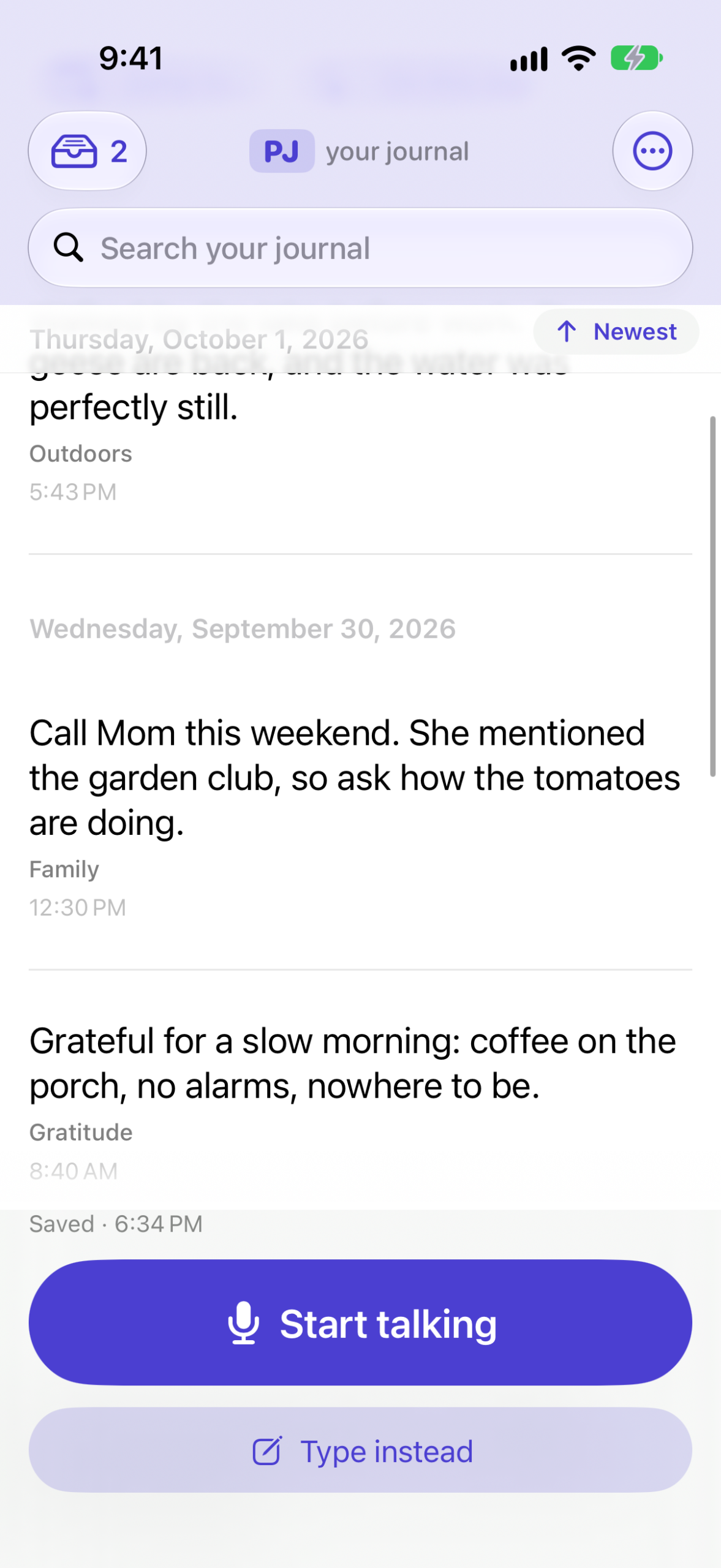
- Scroll the timeline — the day you're reading stays pinned at the top, so you always know where you are.
- Jump — go straight to your Oldest or Newest entry, or browse by year and month.
- On this day — see what you wrote on today's date in past years.
- Search any word, or filter by a label.
- Pin an entry to the top (new in build 32) — got one you keep coming back to? Swipe it, press and hold, or open it and tap Pin, and it moves into a Pinned group at the top of your journal. Unpin to send it back to its date. Pins sync across your devices, and it’s its own thing — editing an entry’s words or labels never changes whether it’s pinned.
- A photo on the row (new in build 32) — an entry that kept a picture now shows a small thumbnail of it in your timeline and lists, so you can spot it at a glance. (If the picture is still syncing over from another device, you’ll see a small photo icon until it arrives.)
Mac On the Mac, press Esc to close an entry and return to the overview, where your total entry count lives.
06 · If a recording didn't get written down
Nothing with audio is ever lost
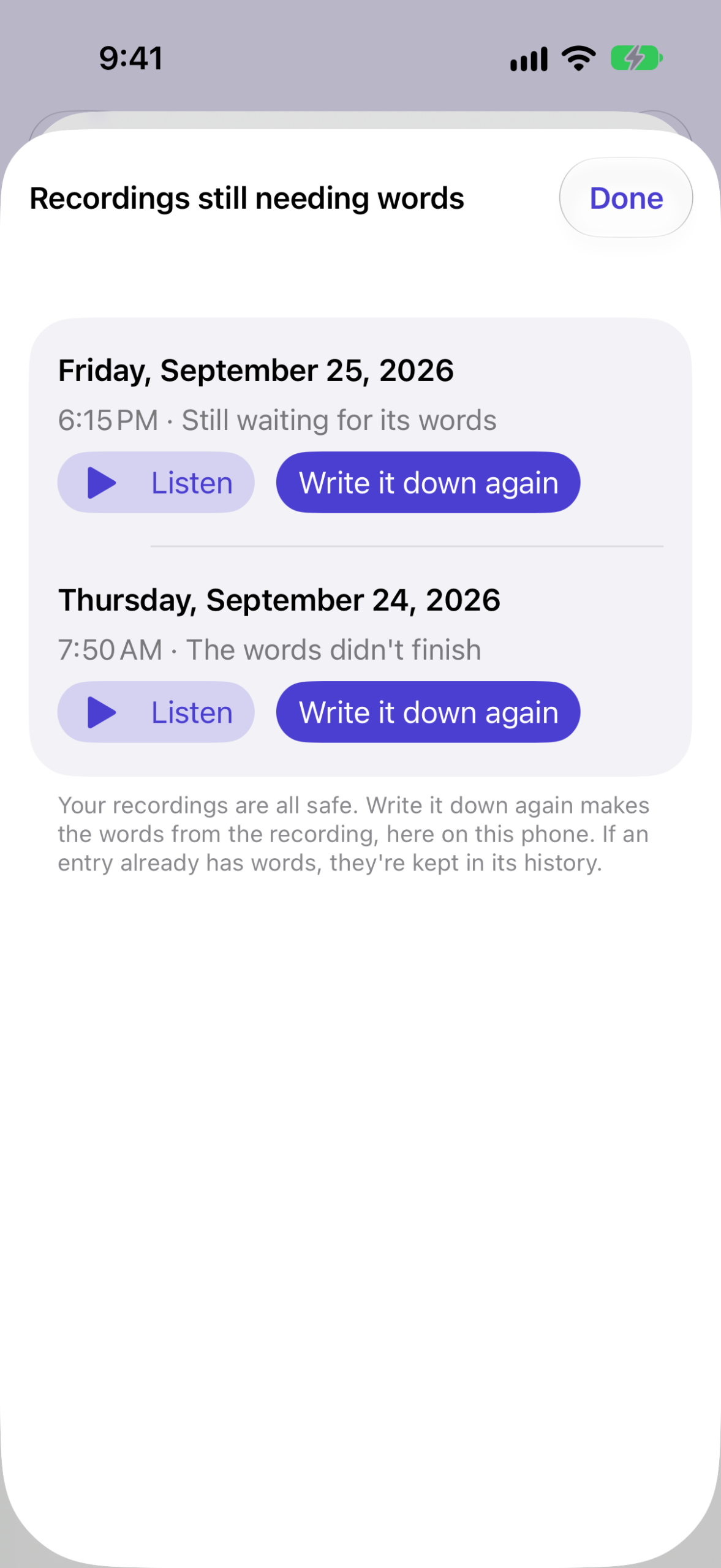
Once in a while a recording doesn't transcribe on the first try. PJ keeps retrying, and gathers any that still need it in one place.
- Look for Recordings still needing words — in Settings, and on the badge at the top-left of your timeline.
- Open one, tap Listen, then Write it down again.
07 · Deleting
Deleting, and changing your mind
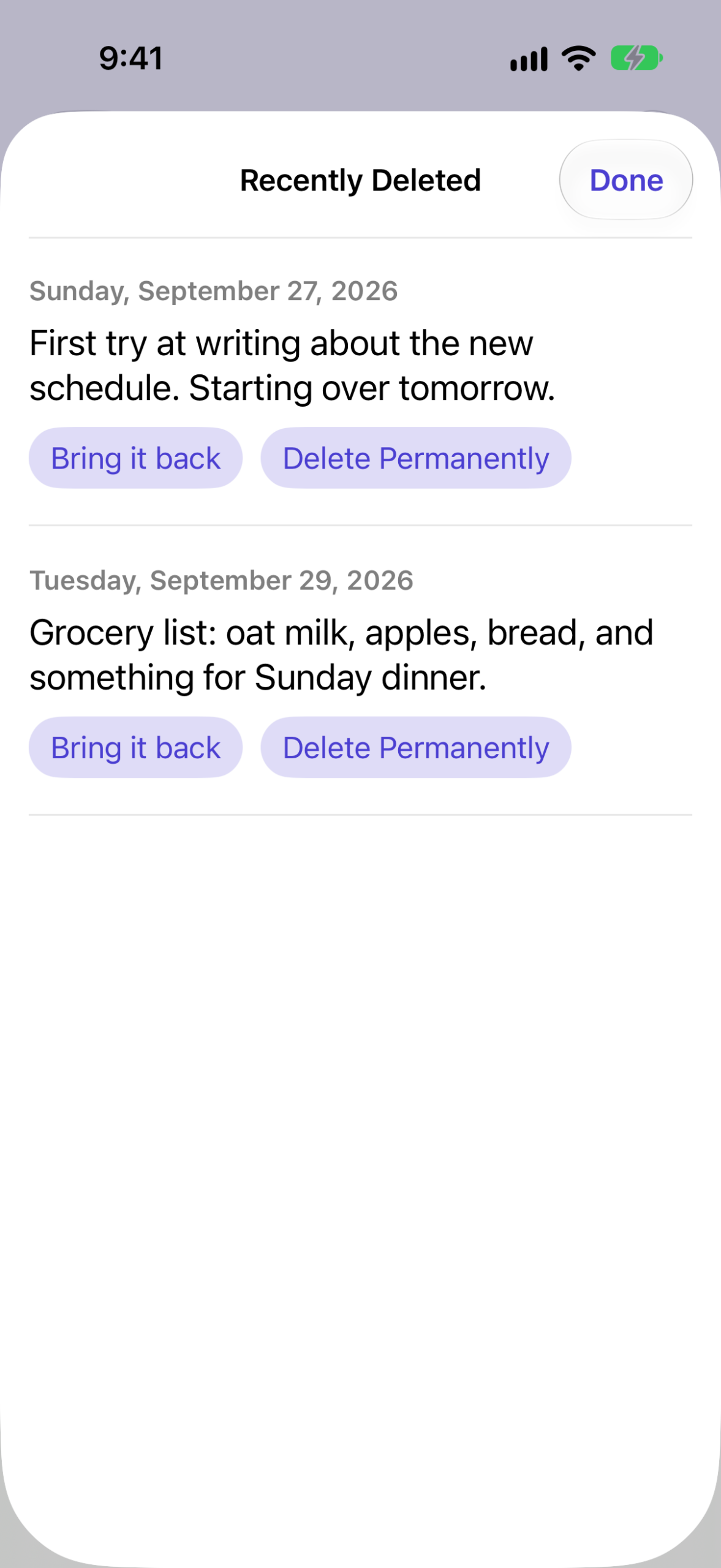
Deleting takes two deliberate taps and always moves an entry to Recently Deleted first — nothing disappears by accident.
- Restore anything from Settings → Recently Deleted, whenever you like.
- Delete permanently a single entry when you want that one gone for good.
- Empty Recently Deleted clears the whole bin at once.
A permanent delete is final and clears from all your devices. PJ never auto-deletes on a timer — things wait until you decide.
08 · Private mode
An extra lock, only if you want it
PJ is already encrypted and private to you. Private mode is an optional, stronger layer for anyone who wants a passphrase on their journal.
Lock vs. Private mode
Lock is a quick screen cover you can tap anytime. Private mode (Settings → Private mode) puts a passphrase on your whole journal — nothing opens without it, on any device. When you turn it on you'll save a one-time recovery code; keep it somewhere safe, it's the only way back in if you forget the passphrase.
Leave Private mode off unless you want it. If you do turn it on, get all your devices on the latest PJ first.
09 · Your old journal
Bring years of history in
Already journaled somewhere else? PJ can bring it in so your whole history lives in one place.
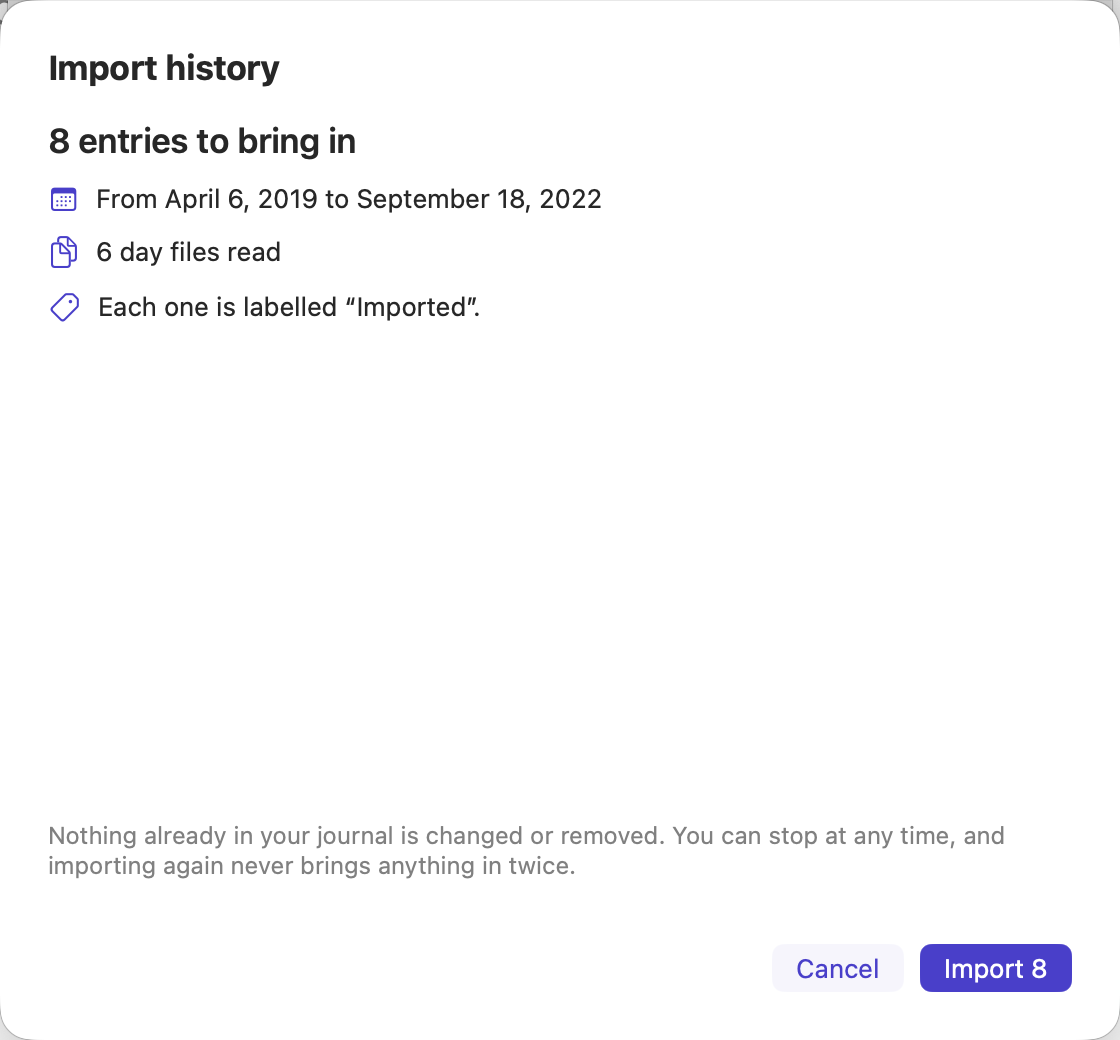
- Mac In PJ, open Import History and point it at your OneNote export (or a folder / .zip of dated notes).
- PJ shows a preview first — how many entries, what dates — before anything is added.
- Import. If it's not right, there's a one-tap Undo.
Every export is a little different — if you've got an old journal you want in PJ, just text me and I'll walk through it with you.
10 · Troubleshooting
If something's acting up
PJ is still young, so now and then something gets stuck. The fixes below are safe to try: your entries are encrypted and kept in your own Apple iCloud — the same iCloud that already holds your Photos and Notes — so reinstalling PJ never loses anything and never exposes anything. Your journal comes right back, for your eyes only.
The mic won't start when you tap Talk
Usually this is iOS getting its microphone permission into a muddle — Settings can even show PJ's mic switched on while the app still can't open it. A clean reinstall resets it:
- Delete PJ from your iPhone (press and hold the icon → Remove App → Delete App).
- Reopen TestFlight and install PJ again.
- Open PJ, tap Talk, and tap Allow when it asks for the microphone.
Your entries come straight back from your own iCloud — you won't lose anything, and nothing of yours leaves your devices. If you use Private mode, have your passphrase handy for the first open after reinstalling.
You added PJ on a Mac and it's empty
If PJ on your Mac shows nothing while your iPhone is full, it's almost always one switch — and your journal is safe. The Mac is simply waiting for the key that unlocks it.
- Sign in to the Mac as you — the same Apple Account as your iPhone (Apple menu → System Settings → your name at the top). PJ only ever uses your iCloud, so a Mac signed in as someone else shows an empty journal.
- Turn on iCloud Keychain — on both the iPhone and the Mac. This is the one PJ needs, and it's separate from Photos and iCloud Drive, so everything else can sync while PJ still can't. On each device: Settings (Mac: System Settings) → your name → iCloud → Passwords & Keychain → on. It has to be on in both places — your phone holds the key, and iCloud Keychain is how it reaches the Mac.
- Open PJ and give it a few minutes. The key arrives through iCloud and your journal fills in on its own. If you use Private mode, PJ asks for your passphrase first.
Still empty after signing in as yourself with Keychain on in both places? Tap Share diagnostics in PJ (it carries no journal text) and email it to support@pjjournal.com — it shows me exactly what PJ is waiting on.
A quicker first thing to try for most hiccups: fully close PJ (swipe it away from the app switcher) and reopen it. If that doesn't do it, a reinstall like the one above clears most stubborn states.
This list grows as we find things together — so if you hit something that isn't here, that's exactly the kind of thing to tell me.
11 · Privacy
It's yours, and it stays that way
It's the same security you already trust every day. PJ has no server and no database of its own — it only uses your own Apple iCloud, the same place your Photos, Notes, and Messages already live. Your entries are encrypted on your device and turned into words on your device (never in the cloud), and they sync only across your devices through your iCloud.
The key that unlocks your journal stays in your iCloud Keychain and on your devices — so your entries can be read only by you, on your own devices. Nothing you write is ever sent to the developer or to anyone else. That's the whole point of PJ: your journaling gets the same protection as the rest of your Apple life, and nothing more is asked of you.
Read the full privacy policy.
12 · Your voice
You're not just testing it — you're shaping it
Seriously. A lot of what's in PJ started as something a tester noticed or wished for. Your ideas, your "this feels clunky," your "what if it could…" — those change the app. Nothing is too small.
No wrong feedback here. If it crossed your mind, it's worth sending.
13 · What's coming
What's coming next
PJ is still being built. Rather than promise something every week, new versions arrive through TestFlight when they're actually ready and worth your time — so the pace is set by what's good to ship, and by what you ask for. (Already-shipped updates are in Build history below, newest first.)
In the works
- A smoother first run — clearer help when a new device is waiting on iCloud or its encryption key, so setup never leaves you guessing.
- “Start from a photo” on the Mac — the photo on-ramp that arrived on iPhone and iPad in build 30, brought to the Mac too.
Nothing here is dated — it ships when it's ready, and your feedback sets the order.
Each build has a number you'll see in TestFlight, next to PJ. Numbers only go up; if something urgent ever needs fixing, it simply takes the next one.
14 · Make it your own
Choose your app icon
New in build 30: PJ can wear a different icon on your Home Screen. Open Settings inside PJ and tap App icon. The friendly PJ dragon stays the default — but if you’d rather something quieter, switch to a simple monogram, a pen nib, or one of two understated discreet looks that blend into a row of everyday apps. Your journal doesn’t change at all; only the icon does, and you can switch back anytime.
iPhone and iPad only (the Mac icon isn’t switchable). When you switch, iOS shows its own brief “you’ve changed the icon” note — that’s expected.
15 · Build history
What's new, build by build
Every TestFlight build, newest first — so you can see how PJ has grown, and what's worth a look when a new one lands. Your current build number shows in TestFlight, next to PJ. Tap any build to open it.
Build 40 shipped — Your Apple Watch, fixed: recordings come over reliably
- Your Apple Watch reliably hands recordings to your phone — if a voice note ever got stuck “sending,” that’s fixed. PJ keeps retrying on its own until each one comes over, even while the Watch screen is asleep.
- “Check my Watch” tells you more — it shows “Checking your Watch…”, re-sends anything that was stuck, and gives you a clear answer. If your Watch isn’t awake, it says so and keeps bringing them over in the background.
- A live count as they arrive — instead of a frozen “sending,” you’ll see “2 of 3 still to come…” ending on “All caught up.”
- Pull to refresh always works — the “waiting on your Watch” notice no longer blocks pulling down to refresh your timeline.
iPhone, iPad, Mac, and Apple Watch. This is the version submitted to the App Store.
Build 39 shipped — The lock covers everything, steady typing, and PJ’s new home
- The lock now covers your journal, even mid-edit — with a passcode set, the lock comes down over everything the moment you leave PJ, including an entry you were in the middle of editing, and asks for your passcode or Face ID when you come back.
- Typing a long entry no longer jumps — the words stay steady and the cursor stays where you are, in a new entry, in “Fix this entry,” and after a voice recording.
- Help and support have a new home — right here at pjjournal.com. The in-app Help link opens this guide, and support is support@pjjournal.com.
iPhone, iPad, Mac, and Apple Watch. If you’re coming from Build 37, there’s nothing new to set up.
Build 37 shipped — Print or export your words, PJ’s dragon in the app, and a quicker Mac
- Print or export an entry — open any entry and choose Print, Save as PDF, or Export. Handy for taking notes to an appointment or keeping a paper copy.
- Print or export a stretch of days — pick a week, a month, a year, or your own dates, or select just the entries you want (on Mac, ⌘- or ⇧-click), and print or export them together.
- PJ’s dragon, inside the app — the little dragon now greets you on the welcome screen, an empty journal, and the lock screen.
- A quicker Mac — when PJ is open on your Mac, new entries from your iPhone or Watch show up sooner.
iPhone, iPad, Mac, and Apple Watch. If you’re coming from Build 35, Build 36’s changes (below) arrive at the same time.
Build 36 shipped — A proper iPad fit, where each entry came from, and PJ noticing when your Watch drops off
- PJ fits the iPad now, held either way — turn the iPad sideways and the whole screen settles into the wider shape instead of staying pinned to a tall column. Your timeline, the writing area, and the status row all use the space, and bringing up the keyboard no longer crowds what you’re working on. Held upright, it looks just as it did.
- See where an entry came from — open an entry and it now tells you which of your devices it started on: From your Apple Watch, From your iPhone, From your iPad, or From your Mac. Handy when a quick thought you spoke into your Watch turns up later and you want to place it. It’s shown only to you, it’s set once when the entry is made, and older entries that came before this simply don’t show a label.
- PJ notices when your Watch loses contact — if you record on your Apple Watch while it’s out of range of your phone (off on a walk without it, Bluetooth dropped), the words wait safely on the Watch until the two are back together. PJ now shows a small card on your timeline — a recording is waiting to come over from your Watch — so a late arrival never looks like a lost one, and it clears itself the moment the handoff finishes. There’s also a Check my Watch in Settings to nudge it along. (This is the fix for the “stuck” Watch recordings a couple of you saw.)
iPhone, iPad, Mac, and Apple Watch. Quieter under the hood: the Mac tidies up its own backup-drive copies more carefully now.
Build 35 shipped — Copy an entry, size at a glance, and the Mac gets photos and a text-size dial
- One-tap Copy (iPhone, iPad, and Mac) — open an entry and choose Copy to put its words on your clipboard, either plain or with the entry’s date on top. It copies only your words — never a photo, a place, or anything else from the entry.
- See an entry’s size at a glance — each entry’s row now shows how much is in it: a recording’s length (like 4:12), or, for something you typed, its word count. A long reflection reads differently from a quick note before you even open it.
- Start from a photo — now on the Mac — the Mac can begin an entry from a photo (or a few) you pick, the same way the iPhone does: a preview of exactly what will be saved, your choice of which picture, and the same private handling — a small copy, with the camera and location data stripped unless you choose to include the place.
- Text size on the Mac — a new Text size control in Settings (Small / Medium / Large). The writing and reading text is a more comfortable size by default now, and you can make it larger or smaller to suit your screen. (A few of you on larger Macs found it oversized — this is the fix.) It’s a per-Mac setting; iPhone and iPad already follow your system text-size.
- Your writing labels stay put — the categories you write with now sync more dependably across your devices. If one device still had the starter set while another had your real list, your real list is what’s kept and restored — a device can’t quietly overwrite your labels with the defaults.
iPhone, iPad, and Mac. There’s also a quieter fix under the hood: more dependable local backups on the Mac.
Build 34 shipped — A friendly setup check, and a one-tap way to invite a friend
- A quick setup check — when PJ needs it, a short, friendly checklist helps make sure the things that let it work and sync are in place: signed in to iCloud, online for the first sync, and (if you’re on a Mac running the iPhone version) a pointer to the Mac version made for your computer. It never blocks you — there’s always a Start writing. Run it any time from Settings → Check my setup. If a new device is slow to get your journal, it will point you to iCloud Keychain if that’s the holdup.
- “Tell a friend about PJ” — if PJ has helped you, there’s a one-tap way to pass it on. In Settings, tap Tell a friend about PJ: it opens your normal share menu with a short invite and the link, and you choose who gets it and send it yourself. Nothing from your journal is ever included — it shares only the invite and the link.
iPhone, iPad, and Mac. (Build 33 was skipped — just a version-numbering step, nothing you’re missing.)
Build 32 shipped — The recording timer fixed, a photo on the row, and pin to top
- The recording timer is fixed — a few of you saw the timer read 0:00 while you were actually recording, on the Lock Screen or on the recording screen itself. Your audio was always fine (it recorded and saved) — the clock just lied. It now counts your real elapsed time and can’t stick at 0 while recording. If a call or Siri interrupts you mid-recording, the timer pauses for the interruption and picks back up after, so it only ever shows the time actually captured.
- A photo on the row — an entry that kept a picture now shows a small thumbnail of it in your timeline and lists, so you can tell at a glance which entries have a photo. (If a picture is still syncing over from another device, you’ll see a small photo icon until it arrives.)
- Pin an entry to the top — swipe an entry, press and hold, or open it and tap Pin, and it moves into a Pinned group at the top of your journal. Unpin to send it back to its date. Pins sync across your devices, and it’s its own thing — editing an entry’s words or labels never changes whether it’s pinned.
iPhone, iPad, and Mac. If you can, give the timer a real workout: start a recording, lock your phone for a minute or two, and watch the Lock Screen timer climb — then try taking a call mid-recording and check that it pauses and resumes.
Build 30 shipped — Start from a photo, choose your icon, and moments made easier
- Start from a photo (iPhone and iPad) — a second way to begin: pick any photo from your library, not only the moments Apple suggests. PJ reads the photo’s date and location, keeps a small private copy the same way, and opens a new entry. No photo-library permission needed — you hand it just the one picture.
- Choose your app icon (iPhone and iPad) — Settings → App icon. Keep the PJ dragon, or switch to a monogram, a pen nib, or a discreet look. Only the icon changes; your journal stays exactly the same.
- The right picture, every time — when a moment has several photos, PJ now lets you choose which one to keep, with a clear preview of exactly what will be saved.
- “From a moment” is easier to find — a shortcut now sits right on the main reading screen (next to Jump and On this day), not only in Labels.
- “Location kept” — if a photo or moment carries a location but no place name, the entry simply says “Location kept,” so nothing is stored that you can’t see.
“Start from a photo” is iPhone and iPad only for now; the Mac version is coming. As always, a picture only enters your journal if you choose to keep it, and it’s a downsized copy with camera and location data stripped out.
Build 29 shipped — Start an entry from a moment, now with a small picture
- Start from a moment (iPhone and iPad) — on the writing screen, tap Start from a moment and your phone offers a few recent moments: a photo, a walk, a place, something you listened to. Pick one and PJ opens a new entry already started with a line or two, ready for you to keep writing. Nothing is saved until you tap Save.
- You choose what comes in — three small switches on the save screen, each remembered: Date it (on), Include who & where (off), and Keep a small picture of the moment (off). Your call every time. (It’s your own encrypted journal — the place, the picture, and any names only come in when you choose them.)
- Keep a small picture of the moment — turn it on and PJ keeps a small, private copy of the photo in the entry, so you remember what it was about. A downsized copy with location and camera data stripped, synced to your devices, shown on iPhone, iPad, and Mac.
- The place and time, kept — with Include who & where on, the entry also notes where and when the moment was (a small place-and-date line; coordinates are never shown).
- “From a moment” — the entries you started this way are gathered together: at the top of your Labels on iPhone, and in the sidebar on Mac.
- Gentler starting labels — a fresh journal now starts with Gratitude, Reflection, Family, Work, Ideas, Good day, Hard day. Your own labels are untouched.
- The Mac locks when you close its window — closing the window (the red dot, or ⌘W) now raises the PIN screen, so reopening asks for your PIN, not only when you quit. (Only if you've set a PIN; a recording in progress keeps going.)
- Easier reading — the Mac Read view groups entries under a clear day header, the iPad layout is tidied up, and the app calls itself “PJ” throughout.
“Start from a moment” is iPhone and iPad only (it uses Apple's Journaling Suggestions), and the list it shows is your phone's own recent suggestions — not a photo browser, and not sorted by date. Nothing about a moment ever leaves your phone.
Build 26 shipped — A polish pass for iPad and Mac
- iPad, done right — PJ works properly on iPad in any orientation, with a comfortable centered reading column on the big screen.
- Spell check on the Mac — as you type, misspelled words get a red underline; right-click to fix one, or Learn Spelling to teach it a name. It never changes your words on its own.
- Clearer Settings — Report a problem goes straight to support@pjjournal.com, and Import your history is now Import an old journal.
- Easier to help you — Share diagnostics opens with a short, plain-language summary. Still completely private, with none of your journal's words in it.
Build 25 shipped — A safety net for recording, a cleaner new-device setup, and PJ's face
- PJ has a face now — a new dragon app icon, on your home screen, the Dock, and your wrist.
- Make a follow-up its own entry — if a follow-up turns out to be its own thought, open it and tap Make this its own entry (with Undo). The original, and anything that follows up on it, stay put. (Kim's idea.)
- Adding PJ on another device is clearer Mac — it opens straight to your journal, shows how many entries you have, and tells you once when everything has finished syncing in.
- A nudge to lock each device — if a device has no PIN, PJ offers to set one, so your journal stays hidden there too. (Your PIN is per-device; Private mode is the lock that travels and encrypts everywhere.)
- A recording safety net — a long recording checks in (Still recording?), stops on its own instead of running forever, and won't fill up your storage. Nothing captured is lost.
- Groundwork only: a new Allow Claude access switch in Settings — off by default and wired to nothing yet. It's the front door for a future, optional, private feature; ignore it for now.


Worth testing: add PJ on your Mac and watch it open to Read with the “synced” note and count; on a device with no PIN, try the “Set a PIN on this device too?” nudge; make a follow-up and detach it with “Make this its own entry”; leave a recording running and catch the “Still recording?” check-in.
Build 24 shipped — Your old journal, deep navigation, and fewer rough edges
- Bring your old journal in Mac for OneNote — import from a OneNote export, or a folder / .zip of dated notes, with a preview first and a one-tap undo.
- Deep navigation — jump straight to your oldest or newest entry, browse by year and month, and see On this day from past years.
- Nothing with audio is lost — a new Recordings still needing words list gathers anything that didn't transcribe, so you can listen and write it down again.
- Reading stays put — the day you're reading pins to the top, and PJ keeps your place as you move around.
- Delete one entry for good — remove a single entry from Recently Deleted without emptying the rest (Kim's idea).
- Steadier microphone — clearer guidance if Talk won't start, and it recovers instead of dead-ending.
Worth testing: import a batch of old entries and check the preview/undo; scroll far back and use Jump and On this day; try Delete Permanently on one entry in Recently Deleted.
Build 23 — PJ's own look, and Private mode
- PJ identity — the indigo look, plus Light / Dark / System themes.
- Private mode — an optional passphrase over your whole journal, with a one-time recovery code to keep somewhere safe.
Worth testing: switch between Light / Dark / System; if you turn on Private mode, make sure every device is on the latest PJ first.
Build 22 — A cleaner read, and recordings that finish themselves
- New reading layout — a calmer, timeline-first way to read back.
- Finishes in the background — a recording writes itself down even if you leave the app; you'll see Writing this down…, then it fills in.
Build 21 — Search, labels, delete, and follow-ups
- Search your whole journal, and filter by label.
- Delete — entries move to Recently Deleted first, so nothing goes by accident.
- Follow-ups — add a new entry as a continuation of an earlier one, kept together.
- Steadier sync across your devices.
Build 20 — A stronger lock, and better diagnostics
- Lock hardening — plus a quick re-check before sensitive actions like exporting.
- Share diagnostics — a content-free way to tell me what happened if something acts up.
Build 19 — Recording safety net, and background recording
- Safety net — the groundwork so no recording gets lost.
- Background recording — keep talking when the screen locks or you switch apps.
Before build 19 — The foundation
Write / Talk / Read, on-device transcription, end-to-end encryption, quiet iCloud sync across your own devices, Apple Watch capture, and the built-in Capture a thought quick-capture (Siri, widgets, Action Button, Back Tap, watch complication) — the core PJ is built on.
New here? You don't need to catch up on any of this — it's all already in your copy of PJ. This list is just so you can see the story, and know what to look at when a new build arrives.